6 Seamless Circle Patterns: A Practical Guide to Using Vector and Raster Assets in Design Workflows
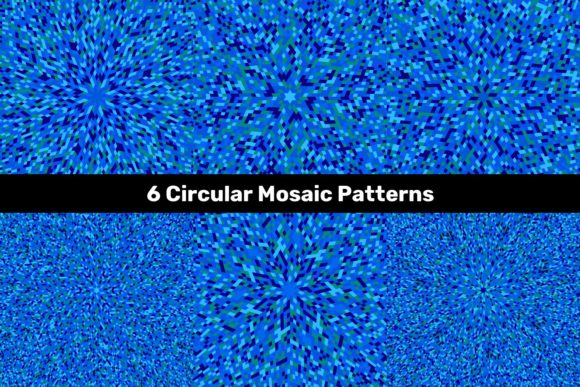
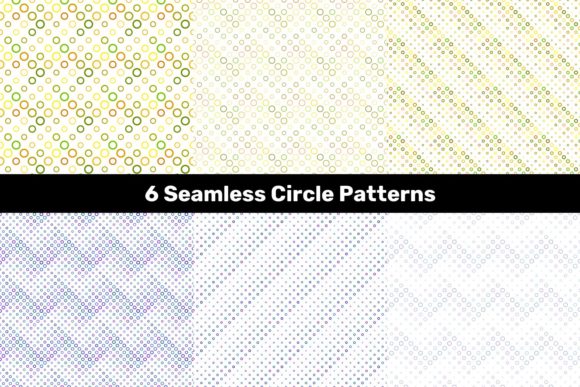
Design assets that offer both raster and vector formats remove a common bottleneck in creative production. The 6 Seamless Circle Patterns package delivers exactly that: six distinct, endlessly repeatable circle-based patterns in three file types. Understanding how to deploy these files across different stages of a project can save hours of manual work and improve consistency across deliverables.
What the Package Contains and Why It Matters
The package includes six unique seamless circle patterns, each provided in three formats:
- 6 JPG files at 5000 x 5000 pixels — high-resolution raster images suitable for immediate use in digital or print applications
- 6 vector .EPS files — editable, scalable outlines that can be opened in most professional design applications
- 6 vector .AI files — native Adobe Illustrator files with full layer and object editability
Having all three formats means you can move between software, output resolution, and editing depth without requesting new versions from a designer or rebuilding a pattern from scratch. This is particularly valuable when you work with multiple tools or deliver assets to clients who use different programs.
Where Seamless Circle Patterns Fit in a Project Timeline
Pattern assets like these are not one-use resources. Their utility spans the entire lifecycle of a project, and thoughtful placement within your workflow determines how much time they actually save.
Before a Project: Planning and Asset Preparation
When you are scoping a new design task, knowing that you have high-quality, resolution-independent patterns available changes how you estimate work. Instead of budgeting two to three hours to create a custom repeating pattern, you can pull a ready-made vector file and adjust colors, scale, or rotation in minutes. The AI and EPS files give you direct access to the underlying geometry, so you can deconstruct the circles, rearrange elements, or combine parts of different patterns to create something entirely new.
If you maintain a style guide or asset library, these patterns slot in immediately. Because they are seamless, you do not need to test tile boundaries or fix visible seams. This reduces the quality assurance phase before production begins.
During a Project: Rapid Implementation Across Deliverables
Once a project is underway, speed and consistency become critical. The 5000 x 5000 JPG files are large enough to serve as backgrounds for web layouts, social media graphics, presentation slides, or print materials up to poster size. Because the patterns are seamless, you can tile them in any page layout or image editing application without worrying about visible repeating edges.
The vector files shine when you need to adapt the pattern to non-standard sizes or curved surfaces. For example, if you are designing a product mockup and the pattern must wrap around a cylindrical object, the EPS or AI file lets you apply envelope distortions or mesh transformations without pixelation. The same pattern that works as a flat background for a website can become a wrap texture for packaging, a textile print, or a UI element fill, all from the same source file.
For teams, the multi-format approach reduces friction. A web designer can use the JPG directly in a mockup tool. A print producer can open the EPS in layout software. A brand designer can adjust the AI file in Illustrator. No conversion, no back-and-forth, no quality loss.
After a Project: Archival and Reuse
Patterns are rarely used only once. After a project concludes, the vector files remain editable and resolution-independent, meaning they can be repurposed for future campaigns, updated color schemes, or derivative work. The AI files store editable shapes, strokes, and fills, so you can return to them years later, change a color to match a new brand palette, and export fresh JPGs at any resolution.
The 5000 x 5000 pixel JPGs serve as reliable archival renders. If you ever need a quick preview or want to embed the pattern in a presentation without opening a vector application, the raster files are ready. This eliminates the small friction of launching a heavy design program just to export a preview.
Practical Implementation Tips
Getting the most out of these patterns requires understanding how each format behaves in different contexts.
Working with the JPG Files
At 5000 pixels square, these images handle most screen-based and moderate print applications without upscaling. For web use, you can downsample them to 1920 pixels wide or smaller without visible quality loss. For print, a 5000 x 5000 pixel image at 300 DPI yields roughly a 16.7 x 16.7 inch output, sufficient for flyers, brochures, posters, and product inserts. If you need larger print dimensions, switch to the vector format.
One practical point: JPG compression artifacts can become visible when the file is heavily manipulated or compressed repeatedly. If you plan to adjust contrast, apply filters, or composite the pattern with other imagery, open the JPG as a smart object in Photoshop so you can preserve the original data. Better yet, use the vector source for any edits that involve resizing or color shifts, then export a fresh JPG at the needed resolution.
Working with the EPS and AI Files
The .EPS files are compatible with a wide range of applications beyond Adobe products, including CorelDRAW, Affinity Designer, and many CAD or illustration tools. When opening an EPS, ensure that the import settings preserve the outline or path data rather than rasterizing it. If your software offers a preview mode, check the result before committing to the import.
The .AI files give you the fullest editing experience. You can select individual circles, change their fill and stroke attributes, apply gradients, adjust opacity, or reorganize layers. If you use Illustrator, you can save variations as symbols or graphic styles, making it quick to apply the same pattern treatment across multiple artboards.
When modifying vector patterns, always test the seam after editing. Although the original circles are tiled perfectly, shifting or scaling elements can break the repeat. To verify, create a rectangle filled with your pattern and copy it side by side. Look for mismatches at the edges. Most vector applications have a pattern preview mode that shows the repeat in real time.
Integrating Patterns with Other Tools and Resources
Seamless circle patterns rarely work in isolation. They combine with typography, photography, color overlays, and layout grids. Understanding how each format interacts with your toolset helps you plan your workflow more efficiently.
- In design software: Drag the AI file directly into an Illustrator project as a symbol or swatch. Place the EPS in InDesign or QuarkXPress without linking to an external raster file. Use the JPG as a background layer in Figma, Sketch, or Photoshop.
- In mockup tools: The JPG files work as texture fills for smart object layers in many product mockup templates. Because the resolution is high, you can scale the pattern down without exceeding the mockup's frame dimensions.
- In presentation applications: PowerPoint, Keynote, and Google Slides accept JPGs as slide backgrounds. Use a single tile, then set the fill to tiling or stretch mode depending on your desired look. For a more polished result, import the pattern as a small repeated element rather than stretching a single copy, which can distort the circles.
- In web production: The JPG files can serve as CSS background images. At 5000 pixels, they are large, so crop them to a smaller tile size before uploading to avoid unnecessary bandwidth. Alternatively, create a small exported tile from the vector file and use that for web use, reserving the full JPG for retina displays or large hero sections.
Organization and Long-Term Use
A pattern library is only useful if you can find the right asset quickly. When you add these six patterns to your collection, consider these organizational practices:
- Name each pattern consistently across all three formats, for example using a descriptive identifier such as "circle-concentric" or "circle-overlap" rather than relying on generic filenames
- Store the AI and EPS files in a vector patterns folder and the JPGs in a separate raster patterns folder, with a readme document listing what each pattern looks like and what formats are available
- If you use a digital asset management system or cloud storage with previews, tag each file with keywords like "seamless," "circle," "geometric," and "repeatable" so non-design colleagues can locate them
- Keep the vector files as editable masters. The JPGs are derivatives. When you update a pattern, edit the AI file, then re-export the JPG at 5000 x 5000 pixels to keep the set consistent
Over time, you may want to create color variations of the same pattern. Because the vector files contain editable paths, you can duplicate the AI file and apply a new color palette in minutes. This gives you a broader library without additional cost or the need to commission new patterns.
Quality Control Considerations
Even with pre-made assets, a brief review ensures they perform as expected in your specific context.
Check the seamless nature by tiling the pattern in your target application. Although the supplier has tested the repeat, software rendering differences can occasionally introduce a hairline gap or overlap at the tile boundary. If this occurs, it is usually because the anti-aliasing settings in your application interpret the edge differently. Switching the display to a higher quality rendering mode or exporting at a larger scale often resolves the issue.
For vector files, verify that all shapes are closed paths and that no stray points exist. This is especially important if you plan to use the pattern with a laser cutter, vinyl cutter, or other fabrication tool that expects clean geometry. Open the AI file, select all, and check the path panel. Any open paths will show as unconnected endpoints. Most vector applications can close small gaps automatically.
Color management is another factor. The JPG files are RGB, which is ideal for screen use. For print, you may need to convert them to CMYK or spot colors. The vector files in EPS and AI can have their color mode changed without loss of quality. If you work in a print-heavy environment, convert the AI file to CMYK before making adjustments, then export print-specific JPGs or PDFs from that master.
Real-World Workflow Examples
To illustrate how these patterns function in practice, here are three scenarios across different professional contexts.
Scenario one: A social media manager preparing a month of templates. You need a consistent visual theme for Instagram posts, stories, and cover images. Open the AI file, change the pattern color to match the brand palette, and save it as a graphic style. Create artboards at multiple aspect ratios, apply the pattern as a background, and export as JPG at 1080 x 1080, 1080 x 1920, and 1500 x 500 pixels. The entire brand kit for the month is ready in under an hour, and every asset shares the same visual foundation.
Scenario two: A packaging designer creating a limited edition wrap. The design requires a circular geometric pattern that wraps around a cylindrical bottle. Import the EPS into Illustrator, apply it as a fill to the bottle template, and use the 3D revolve effect to preview how the pattern wraps. Because the file is vector, you can adjust the scale and rotation until the geometry aligns with the bottle label dimensions. Once approved, export a high-resolution JPG for the printer, and also provide the EPS file so the printer can handle any last-minute resizing without losing detail.
Scenario three: An educator building a course workbook. You want a subtle repeating background for chapter dividers. Open the JPG at 5000 x 5000 in your page layout software, reduce opacity to 10 percent, and tile it across a full-page spread. Because the file is large, you only need one instance set to tiling fill. The pattern remains crisp even when printed at A4 or letter size, and the low opacity keeps the text readable. If you later decide to produce the workbook in multiple languages with different page counts, the same JPG file works for every version.
Observations on Efficiency and Consistency
Having three formats for the same pattern set removes the most common friction points in pattern usage: resolution limits, software incompatibility, and editability. You never need to ask a designer to re-export a pattern or rebuild it from scratch because your tool does not support the original format. You also avoid the quality loss that comes from repeatedly scaling or converting a single file.
The six unique patterns offer variety without overwhelming choice. For most projects, you will find one or two that align with the visual direction. Over multiple projects, the complete set provides enough range for different moods, from dense and intricate to open and minimalist. This makes the package suitable for long-term use across brand work, editorial design, product design, and personal creative projects.
The time saved by using pre-made seamless patterns is not just the minutes spent drawing circles. It is the elimination of structural work: setting up the repeat, testing the tile, fixing visible seams, and ensuring the pattern behaves predictably at different scales. With these files, that work is already done. Your focus can remain on composition, color, and the project itself.